> ## Documentation Index
> Fetch the complete documentation index at: https://docs.aupaircal.com/llms.txt
> Use this file to discover all available pages before exploring further.
# Accept an invitation and join a household
> Use your invitation to join the calendar your family already created.
Open the invitation link from your family and check the household name and your role before continuing.
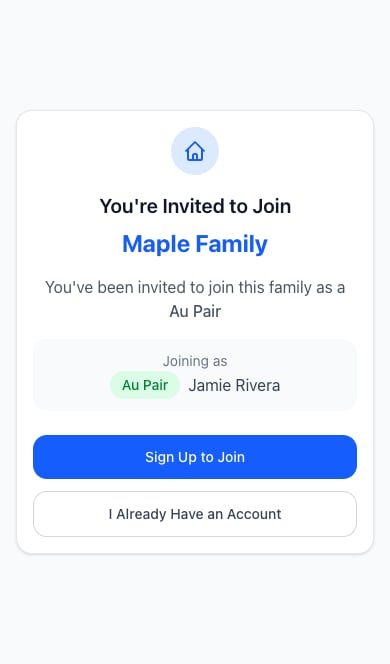 1. Choose **Sign Up to Join** if you need an account, or **I Already Have an Account** to sign in.
2. Use the email address your family invited.
3. Once signed in, choose **Accept & Join Family**.
4. Open the shared calendar. If the household is not yet activated, ask a parent to complete [subscription setup](/setup/subscription).
You do not need to create another household or purchase a separate subscription.
## What you'll see as an au pair
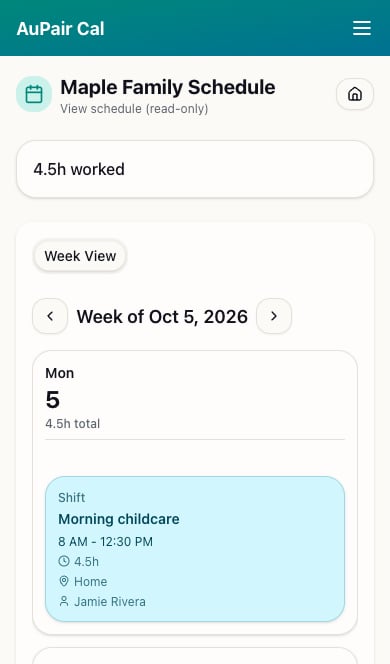
Your calendar says **View schedule (read-only)**. You can navigate between weeks and read shift times and locations. Parents make schedule changes.
1. Choose **Sign Up to Join** if you need an account, or **I Already Have an Account** to sign in.
2. Use the email address your family invited.
3. Once signed in, choose **Accept & Join Family**.
4. Open the shared calendar. If the household is not yet activated, ask a parent to complete [subscription setup](/setup/subscription).
You do not need to create another household or purchase a separate subscription.
## What you'll see as an au pair
Your calendar says **View schedule (read-only)**. You can navigate between weeks and read shift times and locations. Parents make schedule changes.
 **Next:** [What parents and au pairs can do](/family/roles).
This documentation is built and hosted on [Mintlify](https://mintlify.com), a developer documentation platform.
**Next:** [What parents and au pairs can do](/family/roles).
This documentation is built and hosted on [Mintlify](https://mintlify.com), a developer documentation platform.